Microsoft Authenticator

Microsoft Authenticator

By Microsoft Corporation

  • Category: Productivity
  • Release Date: 2015-05-30
  • Current Version: 6.8.39
  • Adult Rating: 4+
  • File Size: 174.94 MB
  • Developer: Microsoft Corporation
  • Compatibility: Requires iOS 16.0 or later.
Score: 4.7369
4.7369
From 577,254 Ratings

Description

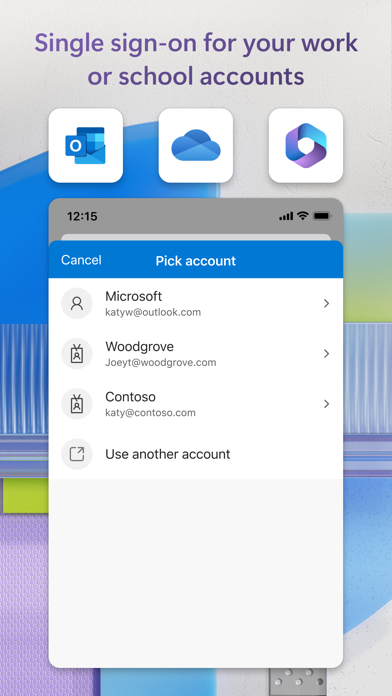
Use Microsoft Authenticator for easy, secure sign-ins for all your online accounts using multi-factor authentication, passwordless, or password autofill. You also have additional account management options for your Microsoft personal, work or school accounts. Getting started with multi-factor authentication Multi factor authentication (MFA)provides a second layer of security. When enabled, during login after entering your password, you’ll be asked for an additional way to prove it’s really you. Either approve the notification sent to the Microsoft Authenticator, or enter the one-time password (OTP) generated by the app. The OTP codes have a 30 second timer counting down. This timer is so you never have to use the same time-based one-time password (TOTP) twice and you don’t have to remember the number. The OTP doesn’t require you to be connected to a network, and it won’t drain your battery. You can add multiple accounts to your app, including non-Microsoft accounts like Facebook, Amazon, Dropbox, Google, LinkedIn, GitHub, and more. Getting started with passwordless Use your phone, not your password, to log into your Microsoft account. Just enter your username, then approve the notification sent to your phone. Your fingerprint, face ID, or PIN will provide a second layer of security in this two-step verification process. After you’ve signed in with two factor authentication (2FA), you’ll have access to all your Microsoft products and services, such as Outlook, OneDrive, Office, and more. Getting started with autofill Microsoft Authenticator app can also autofill passwords for you. Sign-in on the Passwords tab inside the Authenticator app with your personal Microsoft account to start syncing passwords, including the passwords saved in Microsoft Edge. Make Microsoft Authenticator the default autofill provider and start autofilling passwords on apps and sites you visit on your mobile. Your passwords are protected with multi-factor authentication in the app. You will need to prove yourself with your fingerprint, face ID, or PIN to access and autofill passwords on your mobile. You can also import passwords from Google Chrome and other password managers. Microsoft personal, work or school accounts Sometimes your work or school might ask you to install the Microsoft Authenticator when accessing certain organization resources. You will need to register your device to your organization through the app and add your work or school account. Microsoft Authenticator supports cert-based authentication by issuing a certificate on your device. This will let your organization know that the sign-in request is coming from a trusted device and help you seamlessly and securely access additional Microsoft apps and services without needing to log into each.

Screenshots

Reviews

  • Insanity provoking

    1
    By Swimmie100
    If u enjoy being trapped in loops, this is the app for you! When you are in Authenticator and it directs you to open Authenticator, that’s your first clue for impending DOOM.
  • Notifications stopped

    3
    By liar these names are not taken
    The app was working great for years and then suddenly, last month, the notifications stopped working and I have to manually open the app to authenticate websites
  • App is glitchy

    1
    By Alberto G-mez
    I hate the run around to sign in to accounts 2-3 times just for them to fail. The app freezes and it’s very frustrating!
  • Poor Authenticator sign in

    2
    By NotARoadWarrior
    This was far more convoluted than it should be. I transferred MS Auth to a new phone. Authenticator is turned off so I should not be prompted to give you a code from the app if I can’t get one in the first place!
  • Can’t explain my level of frustration

    1
    By mdh115
    It is not easy to switch to a new phone. Be very careful when you have to do it. Why they don’t have an easy way to transfer like google is beyond me.They need to make it idiot proof and it’s not at all. Don’t miss that tiny link you only get to see once or you’re screwed.
  • Authentication looping fail

    3
    By SnoHog
    From OnMicrosoft, I attempted to add Authenticator. Instructions were to go to Authenticator and enter the code OnMicrosoft issued. However, upon entering Authenticator, it generates a code just like OnMicrosoft. Each do not accept a code from the other.
  • Terrible

    1
    By lorenzowaller
    This app never ever works as intended. Just use two factor identification with your phone.
  • Doesn’t work

    1
    By PG-420
    Doesn’t work, just endlessly runs me around in a circle stating to check the authenticator app but doesn’t display the sent code at all. Useless and has locked me out of my account. I’m missing my meeting bc I can’t sign in to my account.
  • Not getting codes

    1
    By Kaitlyn McCary
    I’m not sure what’s going on, codes haven’t been coming through for about a week now. I’m unable to sign in to my work tablet or UKG. Management and I have reinstalled the app twice and re-logged in twice. And still nothing. Fix your app Microsoft!!!
  • Full of bugs

    1
    By JohnnyInSNJ
    It’s so buggy it’s not even funny. Most of the time it gives you an error and makes you click five extra steps but it still lets you through so I can’t tell if it’s really even secure or not.

Comments

keyboard_arrow_up